

Managing Roles
This guide covers role assignment, the permission matrix for built-in roles, and the behavioral quirks you should know about when permissions interact across modules. For conceptual background, see Roles & Permissions.
Assigning roles
Section titled “Assigning roles”Admins (or any member with users:manage) can assign roles from Settings > Team. Select a member to view and change their assigned roles.
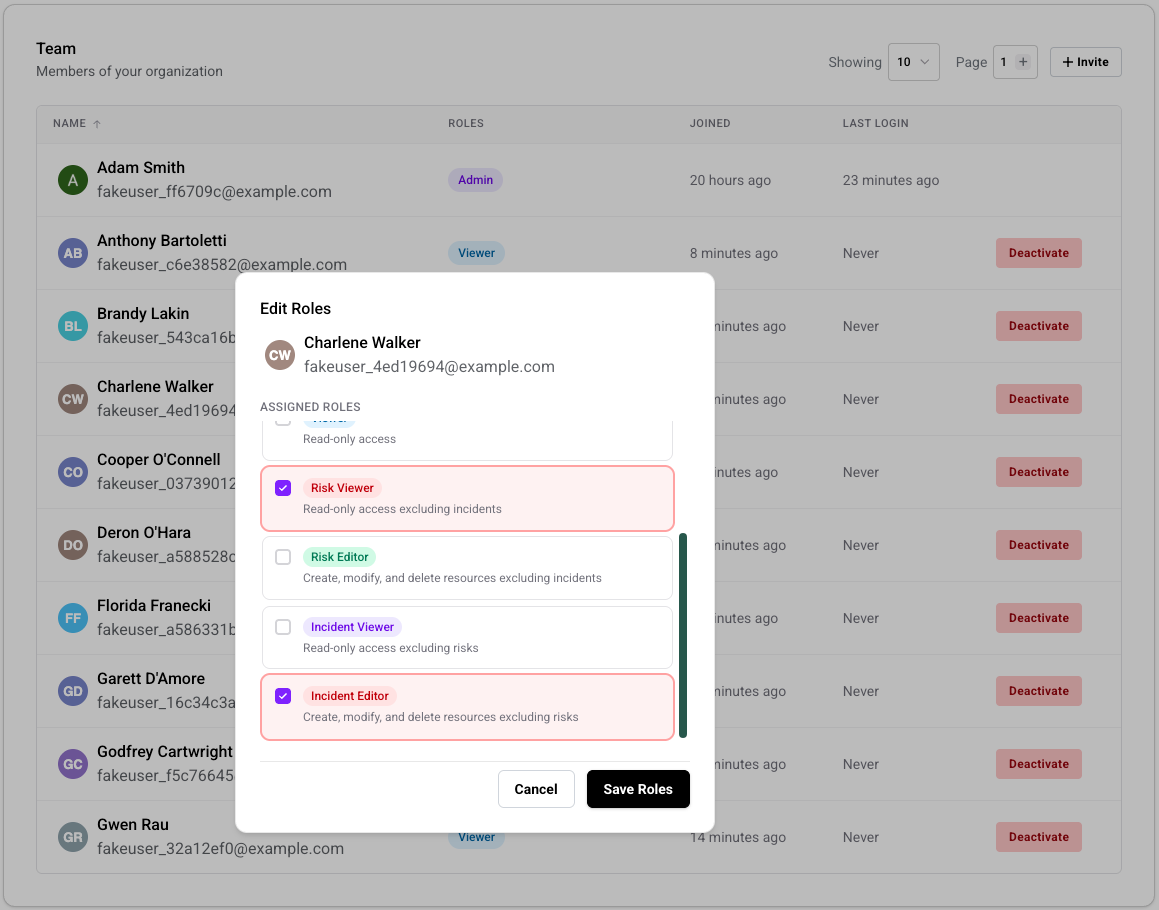
Members can hold multiple roles simultaneously. Permissions are unioned across all assigned roles — see how multiple roles combine.
Restrictions on role assignment
Section titled “Restrictions on role assignment”The platform enforces several rules to prevent privilege escalation:
- You can only grant permissions you hold. If the combined permissions of the roles you’re assigning exceed your own, the request is rejected. An Editor cannot assign the Admin role because Editors lack
integrations:manage,organization:manage, andusers:manage. - Only Admins can assign the Admin role. Even if a custom role happens to include every permission bit, the platform additionally checks that the assigning user holds the Admin role by identity — not just by permissions.
- You cannot change your own roles. Role changes must be made by another member with
users:manage. This prevents accidental self-lockout and ensures a second pair of eyes on privilege changes. - The last Admin cannot be removed. See the admin invariant.
Permission matrix
Section titled “Permission matrix”This table shows which permissions each built-in role includes.
| Permission | Admin | Editor | Viewer | Risk Editor | Risk Viewer | Incident Editor | Incident Viewer |
|---|---|---|---|---|---|---|---|
risks:read | Y | Y | Y | Y | Y | ||
risks:write | Y | Y | Y | ||||
incidents:read | Y | Y | Y | Y | Y | ||
incidents:write | Y | Y | Y | ||||
threats:read | Y | Y | Y | Y | Y | Y | Y |
threats:write | Y | Y | Y | Y | |||
threats:manage | Y | ||||||
documents:read | Y | Y | Y | Y | Y | Y | Y |
documents:write | Y | Y | Y | Y | |||
documents:manage | Y | ||||||
integrations:read | Y | Y | Y | Y | Y | Y | Y |
integrations:manage | Y | ||||||
tags:read | Y | Y | Y | Y | Y | Y | Y |
tags:write | Y | Y | Y | Y | |||
organization:manage | Y | ||||||
users:read | Y | Y | Y | Y | Y | Y | Y |
users:manage | Y |
Module-specific behavior
Section titled “Module-specific behavior”Permissions don’t always interact the way you’d expect. The sections below document the important edge cases.
Tags require dual permissions
Section titled “Tags require dual permissions”Tag management (creating, editing, deleting tags) is gated by tags:write. But assigning a tag to a risk requires both risks:write and tags:read. Having one without the other is not enough:
tags:writewithoutrisks:write— you can create tags in Settings but cannot apply them to risksrisks:writewithouttags:read— you can edit risks but the tag picker is not available
This means a custom role designed for “risk triage” should include both risks:write and tags:read if the workflow involves tagging.
Threats: write vs. manage
Section titled “Threats: write vs. manage”The Threats module uses a proposal workflow with two distinct permission levels:
| Action | Required permission |
|---|---|
| View the threat profile | threats:read |
| Create or edit a threat proposal | threats:write |
| Approve a threat proposal | threats:manage + risks:write |
| Deny a threat proposal | threats:manage |
Approving a threat proposal also requires risks:write because approval triggers cascading risk score updates. Denial has no side effects on risks, so only threats:manage is needed.
Only Admin has threats:manage among the built-in roles. Editors can create proposals but cannot approve them.
Documents: write vs. manage
Section titled “Documents: write vs. manage”Documents follow a similar proposal pattern:
| Action | Required permission |
|---|---|
| View and download documents | documents:read |
| Edit document content | documents:write |
| Approve or deny document change proposals | documents:manage |
| Export Board Deck or CyberGov | All 7 read permissions |
Board Deck and CyberGov exports require all read permissions because these reports aggregate data across risks, incidents, threats, and compliance. A domain-scoped viewer (e.g., Risk Viewer) cannot generate these exports.
Comments inherit parent permissions
Section titled “Comments inherit parent permissions”Comments do not have their own permission. Instead, they inherit from the parent resource:
- Commenting on a risk requires
risks:write - Commenting on an incident requires
incidents:write - Editing or deleting another member’s comment additionally requires
organization:manage
Viewers see comments but cannot post them — the comment composer is visually greyed out.
Compliance uses risk permissions
Section titled “Compliance uses risk permissions”There is no separate compliance permission. Viewing compliance metrics requires risks:read because compliance data is derived from risk closure rates. Any member who can see the risk register can see compliance.
Integrations: no write tier
Section titled “Integrations: no write tier”Integrations have only two permission levels: integrations:read (view configuration) and integrations:manage (connect, configure, remove). There is no intermediate write tier. Editors can view integration settings but cannot modify them.
Organization settings are admin-only
Section titled “Organization settings are admin-only”Editing the organization name, description, or domain settings requires organization:manage, which only Admins hold among the built-in roles. The Company settings page is visible to all members, but form fields are disabled for non-admins.
Export and import
Section titled “Export and import”| Action | Required permission |
|---|---|
| Export risks to CSV | risks:read |
| Import risks from CSV | risks:write |
| Export incidents to CSV | incidents:read |
| Import incidents from CSV | incidents:write |
Read permissions are sufficient for export; write permissions are required for import.
What the UI shows for limited permissions
Section titled “What the UI shows for limited permissions”The platform degrades gracefully for members with limited access:
- Locked sidebar links — Modules you cannot access show a lock icon and a tooltip (“You don’t have permission to view…”). The links are visible but not clickable.
- Access denied pages — Navigating directly to a module you lack read permission for shows a lock icon with an access denied message.
- Read-only banners — When you can view a module but not edit it, a dismissible banner appears: “You have read-only access to [module]. Contact your admin to request edit access.”
- Greyed-out controls — Write actions (comment composers, edit buttons, form fields) appear greyed out and disabled rather than hidden, so you can see what actions exist without being able to perform them.
- Home page eye icon — If you have no write permissions in any module, the header shows an eye icon indicating read-only mode.
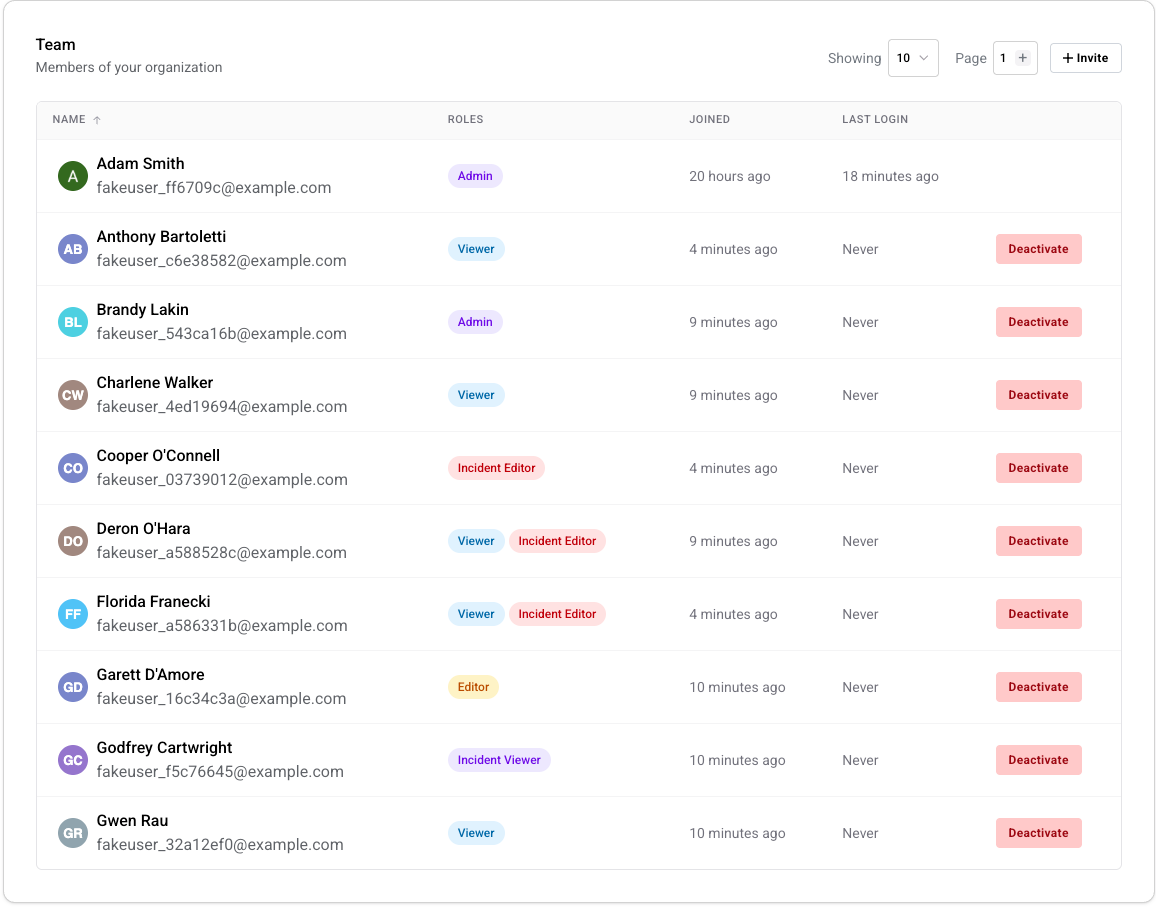
The Team page itself demonstrates this pattern. An Admin sees the full member list alongside Deactivate buttons and the + Invite action:
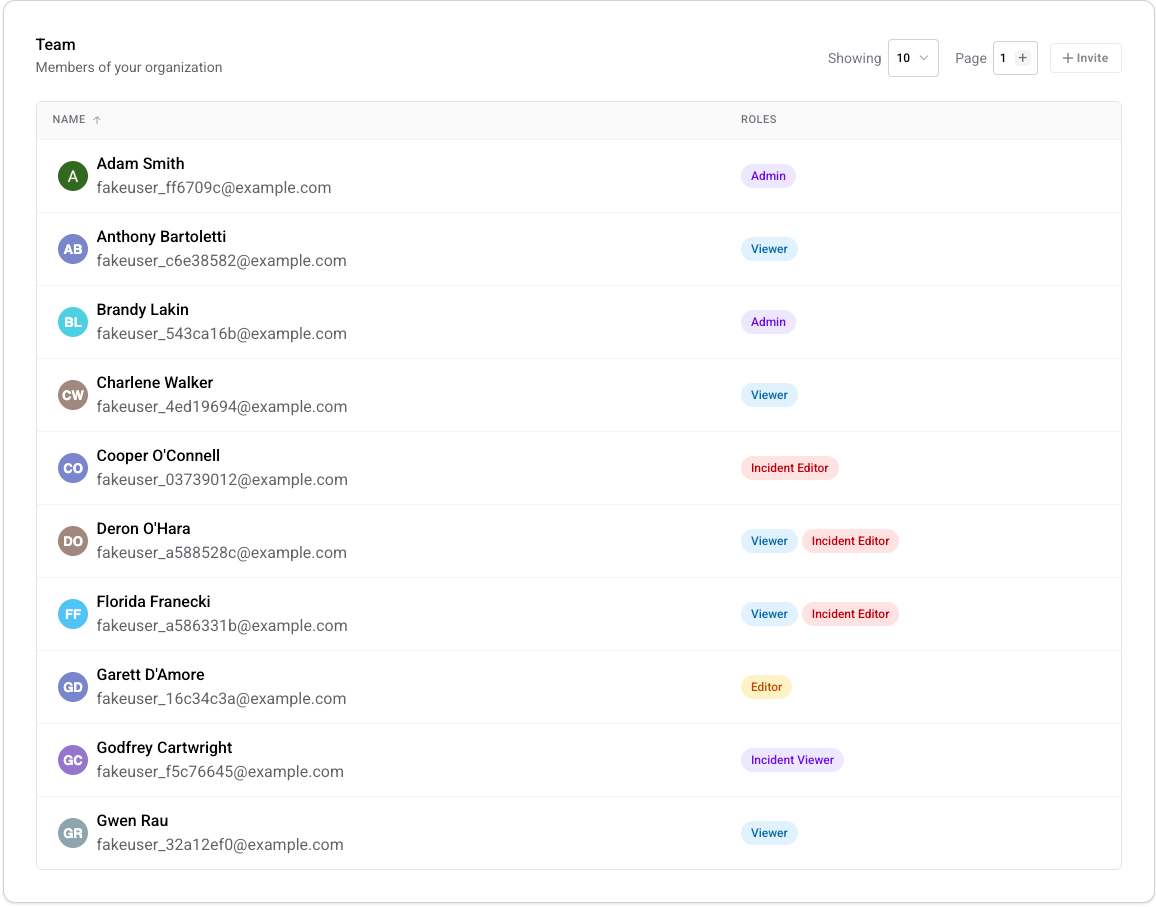
A member without users:manage sees the same roster — names, emails, and role badges — but the administrative controls are absent:
Inviting new members
Section titled “Inviting new members”When inviting a new member, the invite includes the roles they will be assigned upon acceptance. The same assignment restrictions apply — you cannot invite someone with permissions that exceed your own.
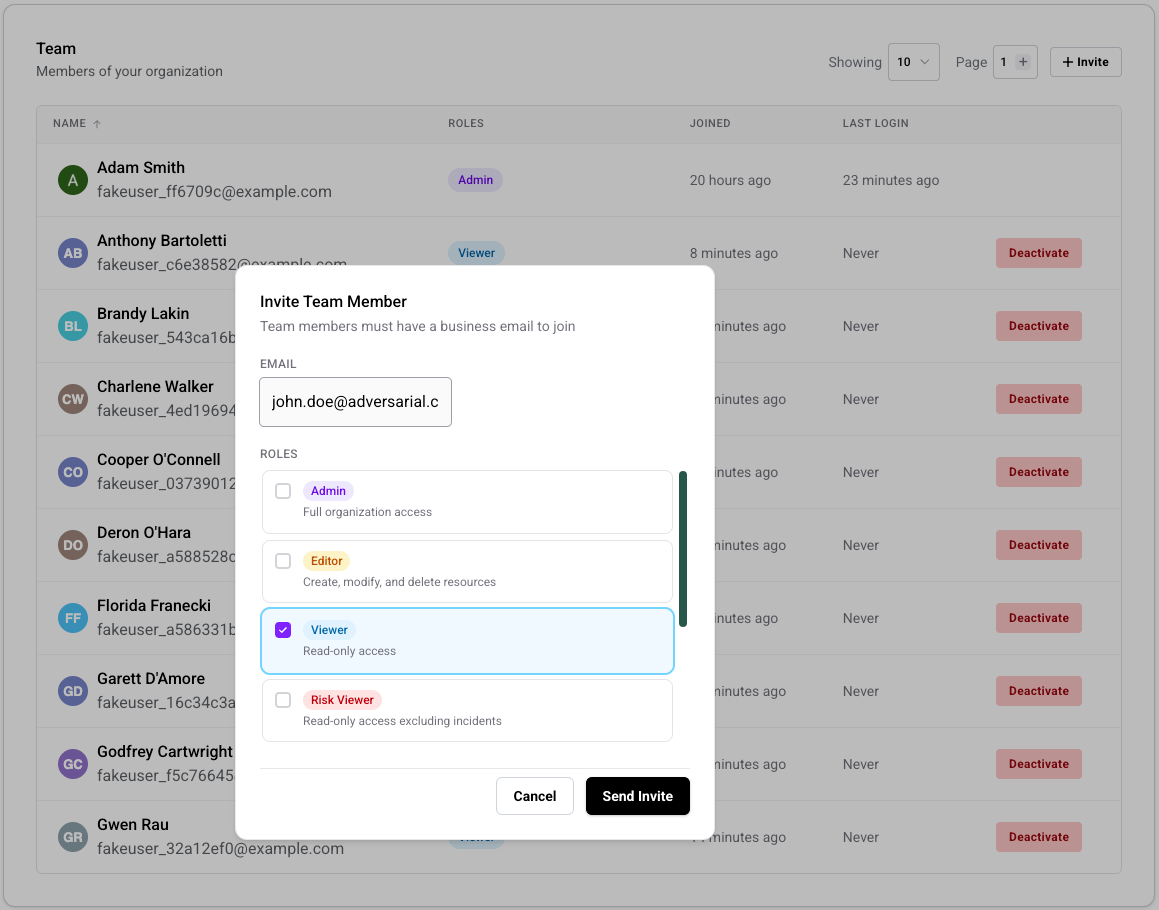
Invites default to the Viewer role if no role is specified. The invite records the role selection at the time it’s sent; if role definitions change between sending and acceptance, the member receives the updated permissions for those roles.
Deactivating members
Section titled “Deactivating members”Deactivating a member is a soft removal — their account remains in the system but they lose all access to the organization. All role assignments are automatically removed on deactivation. Reactivating a member restores their account but roles must be reassigned.
The last-admin constraint applies here too: you cannot deactivate the organization’s last remaining Admin.