

Service Accounts
A service account (SA) is a non-human principal that acts on behalf of your organization. SAs are first-class members of the org — every action a service account takes (creating risks, importing incidents, leaving comments) is attributed to it in the Service Accounts table, exactly the same way a human user’s actions are. This means historical data never points at a “deleted” or “system” actor: even if you disable an SA, it stays visible in the Service Accounts table so existing risks and incidents continue to display the responsible principal.
There are two kinds of service account in Adversarial:
- Credential — created from the Team page. You get a
client_idandclient_secretthat exchange for short-lived JWT access tokens via OAuth 2.1 client-credentials. Use these to drive the API from CI, scripts, or third-party automation. - Integration — created automatically when you configure an integration like Jira, Wiz, or HackerOne. These authenticate with the integration’s own credentials (not OAuth) and represent the integration as a principal (so risks imported from Wiz are
Opened By: Wiz Integration).
Both kinds appear in one unified table on the Team page so you can see at a glance who — and what — is acting on your data.
When to use a credential SA
Section titled “When to use a credential SA”- API automation. Anything that calls the Adversarial REST API outside the browser session: an agent syncing risks, a custom dashboard, an internal tool. You authenticate with OAuth client-credentials and use the resulting bearer token.
- MCP / third-party clients. Tools that need scoped, time-bound access to your tenant.
- Integrations the platform doesn’t yet ship. If you can write code against the API reference, an SA is the right way to authenticate.
For built-in integrations (Jira, Wiz, HackerOne, Bugcrowd, CrowdStrike, GreyMatter, watchTowr, GitHub Dependabot, Slack, Teams), use Settings > Integrations instead of creating a credential SA — the integration provisions its own SA principal automatically.
The Team page
Section titled “The Team page”Open Settings > Team. The page is split into three sections: Team (human members), Service Accounts (integrations + credentials), and Roles (the role catalog). The Service Accounts section shows both integration SAs and credential SAs together, so you can audit every non-human principal in one view.
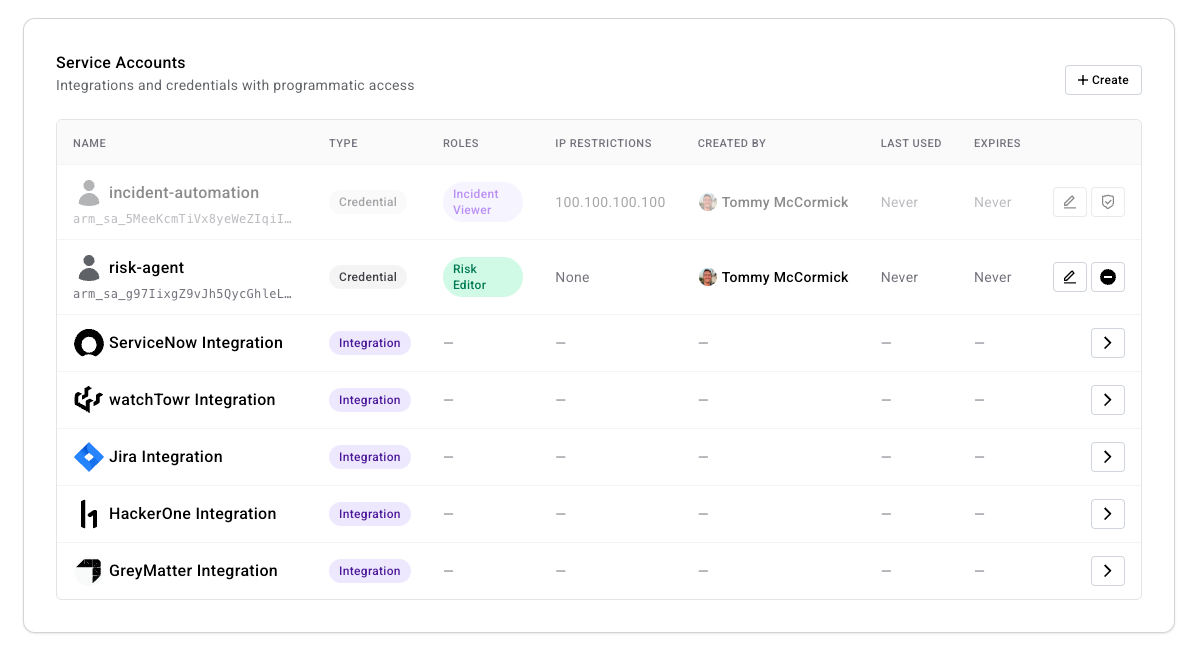
Columns:
| Column | Meaning |
|---|---|
| Name | The SA’s display name. Below it, the public client_id (arm_sa_…) for credential SAs. |
| Type | Credential (created from this page) or Integration (provisioned by an integration). |
| Roles | The roles assigned to the SA. The token issued at sign-in is bounded by these — see API access. |
| IP Restrictions | Comma-separated CIDR allowlist. None means unrestricted. |
| Last Used | When the SA last exchanged credentials for a token. |
| Expires | The expiration date set on the credential. After this point new token requests are rejected and existing tokens stop working. |
| Actions | Credential SAs show pencil (Edit) and Disable / Enable icon buttons. Integration SAs show a single View integration button that links to the integration’s settings page. |
Creating a credential SA
Section titled “Creating a credential SA”You need the Manage Organization permission (Admin only by default).
-
Click Create in the Service Accounts section header.
-
Fill in the Create Service Account modal:
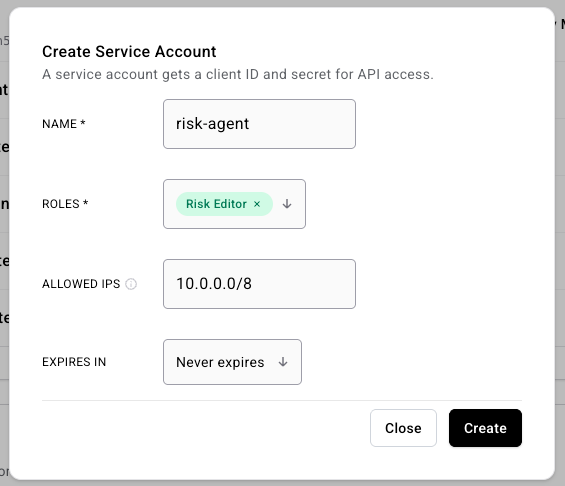
- Name (required) — A human-readable label like
risk-sync-agentortriage-agent. The SA shows up in the Service Accounts table under this name. - Roles (required) — One or more roles selected from
admin,editor,viewer,risk viewer,risk editor,incident viewer,incident editor. The SA can only do what its roles permit; you cannot grant it permissions you don’t hold yourself, and only Admins can grant the Admin role. See Managing Roles for the matrix. - Allowed IPs (optional) — Comma-separated list of IPs or CIDR blocks (e.g.
192.0.2.0/24, 198.51.100.14, 2001:db8::/32). If set, API calls from any source IP outside the list are rejected. Leave empty for unrestricted access. Both IPv4 and IPv6 (including CIDR) are supported. - Expires in —
30 days,60 days,90 days,180 days,1 year, orNever expires(the default). After expiry the SA can no longer issue new tokens, and existing tokens stop working on their next call.
- Name (required) — A human-readable label like
-
Click Create.
-
The platform shows the credential once, in a Service account created confirmation:
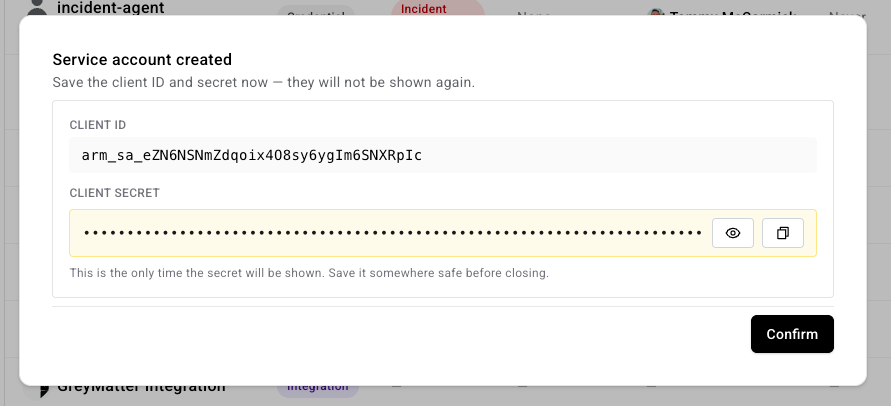
Copy the Client ID and Client Secret to a secure store before clicking Confirm. Once you close the dialog there is no way to retrieve the secret — if you lose it, reset the SA’s credentials to mint a new secret (see Resetting the secret).
Editing a credential SA
Section titled “Editing a credential SA”Click the pencil icon on the SA’s row to open the Edit Service Account modal. The modal subtitle shows the SA’s client_id so you can confirm which credential you’re editing. You can change the name, roles, allowed IPs, and expiry without rotating the secret.
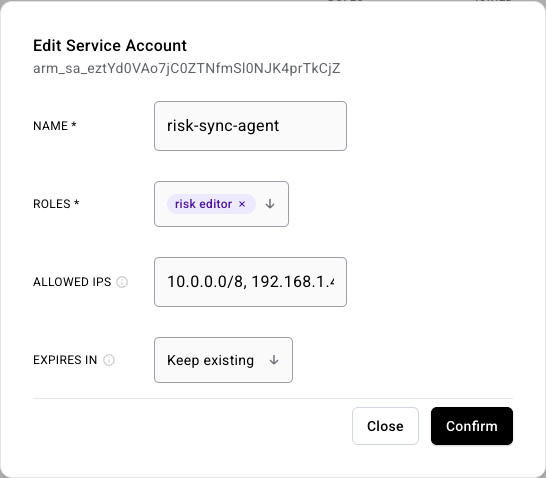
Role changes take effect on the SA’s next token, so they propagate within the 15-minute access-token lifetime. An access token already in flight keeps the permissions it was issued with until it expires. If you need a leaked or runaway SA cut off immediately, Disable it (below) — that takes effect on the SA’s next API call regardless of any token already in hand. See API access — How permissions are enforced for the exact rule.
Resetting the secret
Section titled “Resetting the secret”The Edit modal has a Reset credentials section at the bottom that issues a fresh client_secret while keeping the same client_id. Use it when:
- The current secret has leaked or you suspect it might have.
- You’ve lost the secret and need a working credential without re-creating the SA from scratch.
- You’re rotating credentials on a schedule.
Click Reset credentials, confirm the action, and the platform shows the new secret once — exactly like the create flow. Copy it before closing the dialog; the old one is destroyed the moment the new one is minted.
Effect on in-flight tokens:
- Access tokens issued under the old secret keep working until their 15-minute lifetime runs out — there is no immediate revocation. Use Disable instead if you need to cut off bearer use right now.
- Refresh-token requests under the old secret fail immediately (the token endpoint re-checks the secret on every call).
The button is disabled when the SA is currently Disabled, when there are unsaved edits in the Edit modal, or while a save is in flight. Save or revert your other changes first; if the SA is disabled, Enable it before resetting.
Click Disable on the SA’s row to revoke its credentials without deleting it. The row’s status flips to Disabled, the row is dimmed, and the Disable button becomes Enable.

Disable takes effect immediately:
- Token requests with the SA’s
client_id/client_secretstart returning403 Forbidden. - Existing tokens stop working on their next API call, even if their 15-minute lifetime hasn’t run out.
Use Disable when you want to pause an SA — for example, while you investigate suspicious activity or temporarily turn off an automation. Click Enable to bring it back online; tokens that haven’t run out their 15-minute window become valid again.
If the credential was compromised but you want to keep the SA itself — same client_id, same roles, same audit history — reset the secret instead of disabling. Reserve Disable for “pause this SA” and DELETE /api/v1/oauth/clients/{id} for “tear this SA down completely” (see API access — rotation).
Integration service accounts
Section titled “Integration service accounts”Integration SAs appear in the same table but behave differently:
- They authenticate with the integration’s own credentials (the API key, OAuth refresh token, or webhook secret you configured at Settings > Integrations > [Integration name]), not with
client_id/client_secret. - Their Type is
Integrationand the row’s View integration action takes you to the integration’s settings page. - When you remove an integration, its SA flips to
Disabledautomatically — but the SA stays in the Service Accounts table, so existing risks and incidents created by that integration keep theirOpened Byattribution. - Re-configure the integration to flip the SA back to
Active.
This means it’s safe to disable, reconfigure, and re-enable an integration without losing data attribution, and you can audit every non-human action in your tenant from one place.
Last-admin protection
Section titled “Last-admin protection”Service accounts count as principals for almost every authorization check, but the last-admin lockout is the deliberate exception. The platform refuses to remove the only remaining human admin even when one or more service accounts also hold the Admin role. This stops a runaway script with admin credentials from locking everyone out of their own tenant.
You’ll see this surface as a 400 Bad Request with the message Cannot remove or deactivate the last admin. Assign the admin role to another member first. when you try to deactivate the last human admin via the Team page or the API.
What’s next
Section titled “What’s next”- API access — exchange the credentials for a JWT and call the API.
- Managing Roles — pick the right roles for your SA.
- API Reference — every endpoint a credential SA can call.